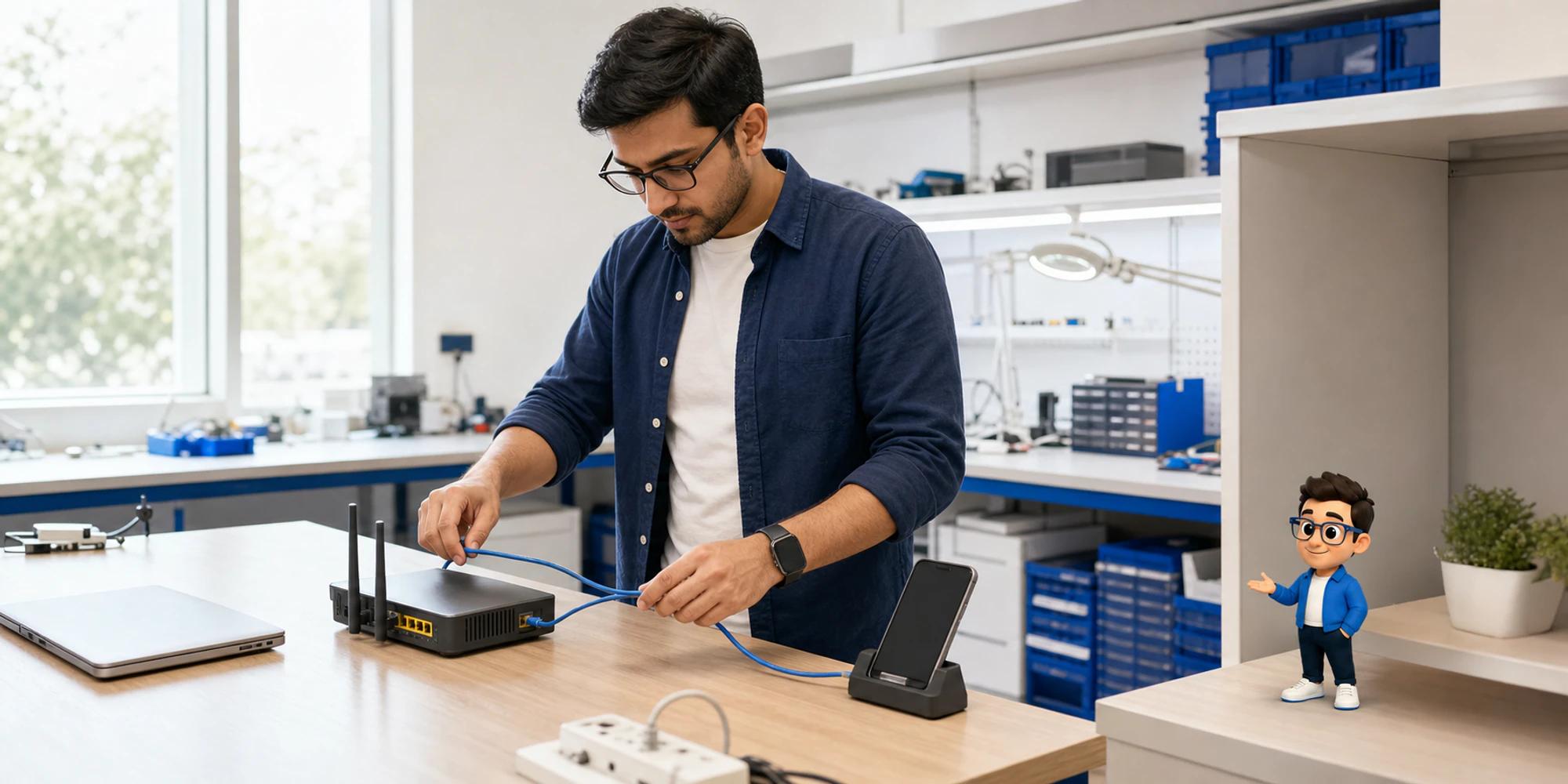





Turning on WhatsApp Business Calling API is not the same as launching a usable phone channel. The API can expose a call button, but a real launch also needs an eligible Cloud API number, call settings, signaling, media, permission rules, opening hours, ownership, and a tested path when nobody answers.
The safest setup is narrow. Start with one business number, receive user initiated calls first, define who answers them, and prove that the call record reaches the same customer history as the surrounding messages. Add business initiated calls only after the permission flow and unanswered call rules work in production.
Begin with the number and account gate
Meta's current Calling API overview says the business number must already use Cloud API rather than the WhatsApp Business app. The app handling the number must be subscribed to the WhatsApp Business Account and the calls webhook field, and it needs the whatsapp_business_messaging permission.
Calling is disabled by default. Meta also requires the business to have a daily messaging limit of at least 2,000 unique recipients before calling can be enabled on a production number. Public test numbers and eligible sandbox accounts can be used for testing without that production threshold.
Check those conditions before building media handling. Otherwise a team can spend days debugging WebRTC or SIP when the number itself is not eligible. Record the business portfolio, WhatsApp Business Account, phone number ID, app, webhook subscription, permission owner, and current messaging limit in one setup sheet. Do not place access tokens in it.
Decide who may call whom
The API supports two different paths. A user initiated call starts when a WhatsApp user calls the business. A business initiated call starts when the business calls a user.
Treat them as separate releases. Inbound calling tests whether the team can receive, route, answer, and end a call. Outbound calling adds a consent system. Meta requires the user to grant call permission before the business calls them. The permission can be temporary or permanent, and the user can revoke it.
Meta's call permission guide currently limits a business to one permission request in 24 hours and two within seven days for each business and user pair. It also applies consequences after repeated unanswered or rejected outbound calls. Store permission state and its source. Do not turn a message opt in into call permission by assumption.
Configure customer controls before showing the icon
The visible call button creates an expectation that somebody will answer. Configure that expectation before exposing it.
Meta's call settings documentation lets a business enable calling, control call icon visibility, define operating hours and holiday schedules, enable callback permissions, and configure voicemail. Call hours use a named timezone. That matters for teams serving several markets or changing daylight saving time.
Decide what happens in four states: open and staffed, open but at capacity, closed, and temporarily unavailable. The customer should get a clear alternative such as messaging, a callback request, or voicemail. Hiding the icon is not a staffing plan. Meta also notes that client apps can take up to seven days to reflect a settings change, even though the server honors the current configuration, so verify behavior on real devices.
Connect signaling and media deliberately
The default architecture uses Graph API calls and webhooks for signaling, with WebRTC for media. Meta also documents SIP options for teams connecting an existing voice stack. Choose one path early because enabling SIP changes how calling endpoints and webhooks are used.
For an inbound WebRTC call, the calls webhook delivers the connection event and session offer. Meta recommends pre accepting the call so the media connection is ready before final acceptance, which reduces connection delay and audio clipping. The system then accepts, runs, and terminates the call through explicit states.
Keep those states in an append only event record. At minimum capture the WhatsApp call ID, business number, customer identifier supplied by the webhook, direction, permission state when relevant, timestamps, termination status, and owner. Do not treat a duration greater than zero as proof that the customer reached the right outcome.
Test the whole customer path
A successful API response is only one checkpoint. Test a real path from the customer's device to the person or system expected to answer.
Use Meta's public test number or an eligible sandbox first. Then run a controlled production test on one number. Check the call icon, opening hours, inbound connection, audible media in both directions, timeout behavior, missed call path, callback permission prompt, termination webhook, and the record shown to the operating team.
Test failure as carefully as success. Disconnect media. Let a call ring out. Reject it. Change the holiday schedule. Revoke outbound permission. Confirm that retries do not create duplicate call records or cause repeated permission requests. Give the launch an owner who can disable calling if media quality, routing, privacy, or staffing fails.
Keep the call attached to the conversation
Calling becomes much less useful when the result sits in a separate voice tool. The next agent should see that a call happened, who owned it, how it ended, and what the customer needs next. A short outcome note is usually more useful than a raw duration.
DripTell's current WhatsApp channel and shared inbox pages describe messaging history, ownership, and customer context. They do not by themselves prove that WhatsApp Business Calling API is enabled for a particular workspace. Confirm calling support and the media architecture separately, then decide which call events and outcomes must return to the conversation record.
Launch one number with one accountable team. A call button is easy to notice. A reliable answer path is what makes it useful.
Frequently Asked Questions
What is required to enable WhatsApp Business Calling API
You need an eligible WhatsApp Business Platform number on Cloud API, the required app and webhook subscriptions, whatsapp_business_messaging permission, sufficient production messaging limits, enabled call settings, and a working signaling and media path.
Can a business call any WhatsApp user
No. Business initiated calls require call permission from the user, and availability depends on the business number's country. Check Meta's current country restrictions and permission rules before launch.
Should a team use WebRTC or SIP
Use WebRTC when the application will handle Graph API signaling and media directly. Consider SIP when connecting an existing voice platform. The choice affects endpoints, webhooks, operations, and troubleshooting, so make it before implementation.
How should the team test the setup
Test both success and failure from a real customer device. Verify hours, permissions, connection, two way audio, missed calls, termination events, ownership, records, and the emergency disable path before exposing the number broadly.
Want help applying this guide?Ask the DripTell team
From reading to action
Want help applying this to your business?
Share your details. We will read the article you are on and start with a useful answer for your team.
DripTell Editorial
Practical guidance reviewed by the DripTell product and customer workflow team.
See how DripTell checks product claims, uses primary sources and handles corrections.
Editorial and source policy